
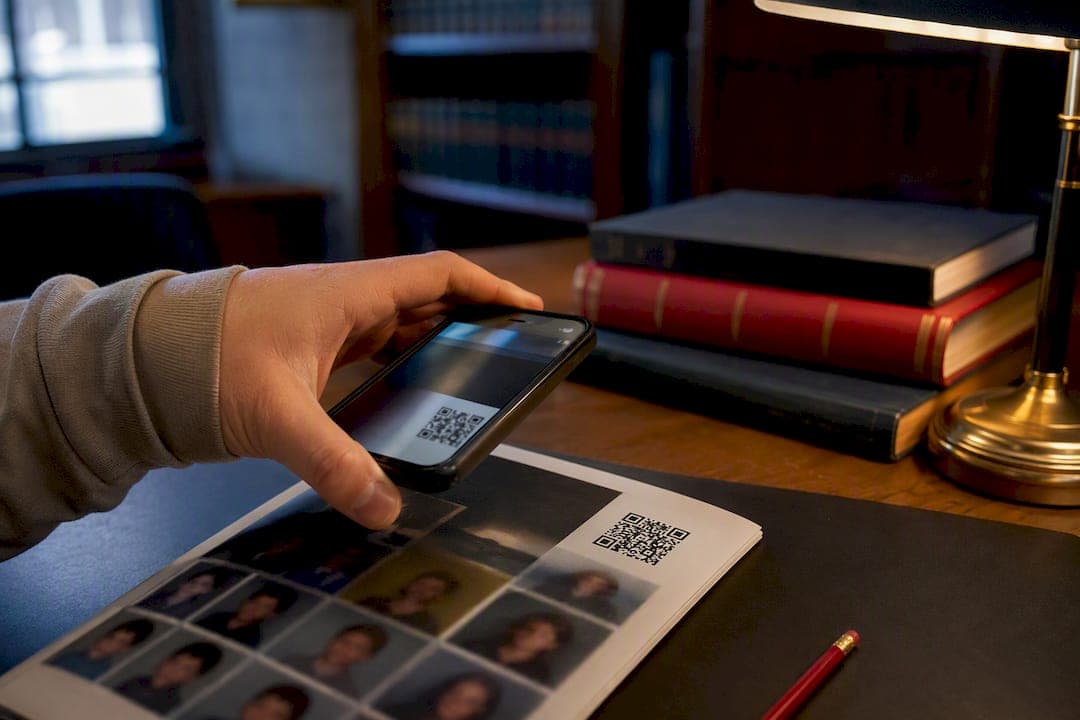
Yes, QR codes are worth adding to your yearbook, but only if you follow one rule without exception: publish and test the destination page before you generate a single code. Skip that step and you print hundreds of dead links. Done right, QR codes in yearbooks let you attach video highlights, audio clips, photo galleries, and extended captions to a printed page that otherwise has to stay flat and static.
TL;DR:
- Using dynamic QR codes or school-controlled redirect pages ensures links remain functional even if content moves or hosting platforms change over time.
- Testing QR codes at final print size and using high-contrast, high-resolution files drastically improves scan reliability across different devices and paper types.
- Hosting content on your school's website or a managed short link can prevent dead links, unlike third-party platforms where account access may lapse.
- Building and maintaining an archive spreadsheet with code and URL details simplifies updates and troubleshooting in future years.
- Incorporating video highlights, audio messages, and photo galleries into QR codes adds value beyond static images, especially for large or special-event content.
Table of Contents
- What Are QR Codes in Yearbooks and Why Use Them?
- How Do You Add QR Codes to a Yearbook Step by Step?
- Where Should You Host QR Code Content for a Yearbook?
- What Makes a QR Code Actually Scan Reliably in Print?
- What Are the Best QR Code Ideas for a Yearbook?
- How Do You Handle Permissions and Student Privacy With QR Codes?
- How Do You Stop Yearbook QR Codes From Breaking Over Time?
- How TrailMark Yearbooks Supports Advisers Adding QR Codes
- An Adviser's Honest Take on QR Codes in Yearbooks
- Get Help Printing a QR-Ready Yearbook
- Sources
- FAQ
What Are QR Codes in Yearbooks and Why Use Them?
A QR code in a yearbook is a small scannable square printed on a page that opens a video, playlist, gallery, or webpage when a phone camera reads it. Think of it as a bridge between the printed book, which lasts for decades, and digital content that captures motion, sound, and detail no photo caption can.
The appeal is obvious once you've sat through a homecoming game or a theater rehearsal. A single still photo of the winning shot doesn't capture the crowd noise or the ten seconds leading up to it. Schools have used QR codes to link yearbook pages directly to homecoming videos, pep rally footage, and graduation ceremonies, turning a page that used to be one photo and a caption into a doorway to the full clip.
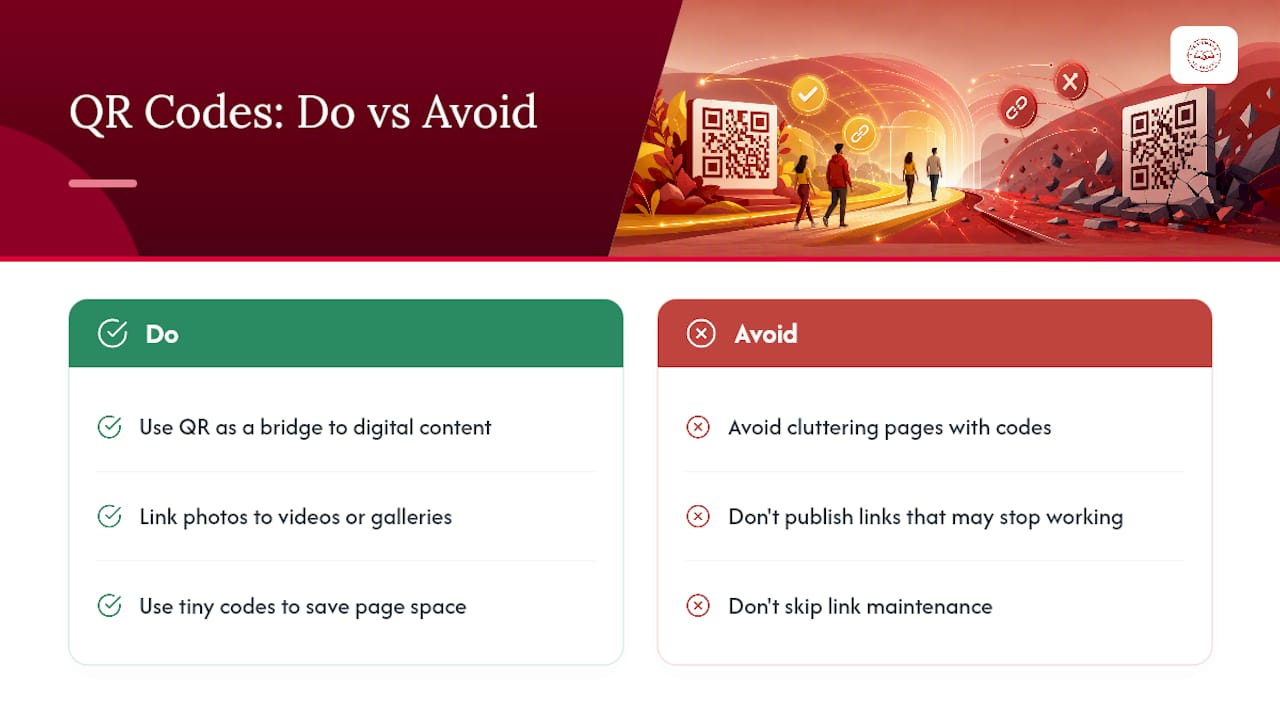
Beyond video, QR codes solve a real space problem. Yearbook advisers chronically run out of room for senior quotes, club rosters, or that extra set of candid shots from picture day. A code the size of a postage stamp can hold an entire gallery, an audio message, or a scrolling list of names that would have eaten a quarter page in print. Used carelessly, though, codes become clutter or, worse, links that stop working within a year. The rest of this guide is about avoiding that outcome.
How Do You Add QR Codes to a Yearbook Step by Step?
Adding QR codes to yearbook pages works best as a sequence, not a scramble in the final week before your print deadline. Skipping ahead to code generation before your content exists is the single most common mistake advisers make, and it's the direct cause of most broken-link complaints after distribution.
- Plan the content and get permissions first. Decide which spreads get codes, what each one will link to, and confirm you have signed media releases for anyone appearing in the linked video, audio, or photos.
- Build and test the destination before touching a QR generator. Upload the video, publish the gallery, or finish the webpage, then open it on a phone exactly the way a student will. Practitioner guidance from the Journalism Education Association is blunt about this: codes generated against placeholder or temporary URLs are the main reason yearbook QR codes fail after printing.
- Choose dynamic or static codes. Dynamic codes route through a redirect you control, so you can fix or update the destination later. Static codes point directly at a URL forever, no changes possible.
- Generate the code in a print-ready format, ideally a vector file (SVG or EPS) rather than a low-resolution PNG pulled off a generator's preview screen.
- Place it on the layout with consistent sizing, a clear caption, and enough white space around it that the design software doesn't accidentally shrink or crop it.
- Export a printed proof and scan it with several different phone models before the book goes to press.
- Log every code in an archive spreadsheet: which spread, which URL, which login owns that content, and when it was last checked.
Pro Tip: Build your archive spreadsheet in step one, not step seven. Adding a row every time you create a destination page takes ten seconds; reconstructing that list eight months later from memory takes an afternoon.
Where Should You Host QR Code Content for a Yearbook?
Your hosting choice determines whether these codes still work in three years or turn into dead ends by next fall. There's no single right answer, but there is a wrong one: publishing content somewhere you don't control and can't update.
- Self-hosted pages on your school's own website or CMS give you the most control and the best shot at long-term stability, since nothing depends on a third-party account staying active.
- Third-party hosts like YouTube, Google Drive, or digital yearbook platforms such as Issuu's flipbook tools are fast to set up and familiar to students, but you need a clear plan for who owns the account and what happens if that staff member leaves.
- Dynamic QR generators let you swap the destination URL after the code is already printed in thousands of books, which solves the single biggest headache with static codes: a broken link means a broken code forever.
- A short link or redirect page your school owns as the QR target is the middle path many advisers land on. The printed code always points to the same short URL, and you update where that URL forwards to whenever the underlying content moves.
What Makes a QR Code Actually Scan Reliably in Print?
A code that looks fine on your monitor can fail completely once it's shrunk onto a 2x3 photo layout and run through a commercial press. Size, contrast, and file resolution all matter more than most advisers expect going into their first QR-enabled spread.
Older guidance called for QR codes at least one inch square, but modern phone cameras can reliably scan smaller codes than that older standard assumed. That doesn't mean you should shrink every code to fit a tight corner. It means you still have to test at final print size rather than trust a rule of thumb.
- Export raster files at 300 DPI minimum; use vector formats (SVG, EPS, PDF) when your design software allows it, since they stay crisp regardless of print size.
- Keep a "quiet zone," a clear margin of blank space, around every code so busy backgrounds or overlapping text don't confuse the scanner.
- Use high contrast, ideally black on white or a similarly dark-on-light combination; colored or gradient backgrounds behind a code are a common cause of failed scans.
- Placement and DPI decisions measurably affect scan success rates, so treat proofing as a design step, not an afterthought squeezed in before shipping to the printer.
- Always print a short URL or caption alongside the code for readers who can't or won't scan.
Pro Tip: Print your proof pages, don't just view them on screen. Ink saturation and paper stock can shift contrast enough to turn a code that scans perfectly on your laptop into one that fails at the print shop.
What Are the Best QR Code Ideas for a Yearbook?
The content decision matters as much as the technical one. Codes work best when they add something a printed page genuinely can't, not when they're stapled on because a template had room for one.
- Extended game highlights or full performance footage that a single action shot can't capture.
- Club and organization video compilations that replace a page of static group photos with movement and sound.
- Senior farewell messages recorded on video instead of squeezed into a two-line quote.
- Oral history clips from retiring teachers or long-serving staff, the kind of content schools have already used successfully for graduation and memorial pages.
- Bonus photo galleries for events where you had far more good shots than page space.
Keep placement consistent, same corner, same size, across every spread that carries a code, so readers learn to expect it. Label each one with a short caption ("Scan for the full halftime show") so nobody scans blind. Teach students to use them at your distribution event; a five-minute demo table does more for adoption than any instructions printed inside the cover.
How Do You Handle Permissions and Student Privacy With QR Codes?
Linked video and audio content raises the same privacy questions as printed photos, just with higher stakes because the content is easier to share and harder to fully take back once it's out.
- Collect written media releases specifically covering any video, audio, or gallery content tied to a QR code, and keep a record of who did and didn't consent.
- Use unlisted links or password-protected hosting for anything you want restricted to book purchasers rather than the open web.
- Loop in school administration early if any content touches sensitive topics, and offer parents a real opt-out process rather than an assumed one.
- Add access credentials and how long you'll keep each destination live to the same archive spreadsheet you're already building. Our guide to yearbook student data privacy walks through consent documentation in more detail.
How Do You Stop Yearbook QR Codes From Breaking Over Time?
The code itself never expires. QR codes remain scannable indefinitely; it's the destination link that dies, when a video gets taken down, a free hosting account lapses, or a URL changes. Planning for that now saves you a wave of angry emails two years from now.
- Default to dynamic QR codes or a school-owned redirect page so you can update destinations without reprinting anything.
- Maintain the archive spreadsheet mapping every code to its URL and login, and treat it as a living document, not a one-time export.
- Test every link once a year, and definitely before reunions or anniversary events when old yearbooks come back out.
- If a destination genuinely can't be revived, build one central "where did my content go" page explaining what happened and offering an alternate way to access it.
Pro Tip: Set a recurring calendar reminder for August, before the next school year's chaos starts, to run through last year's codes. Catching a broken link in month two is a quick fix; catching it at a ten-year reunion is not.
How TrailMark Yearbooks Supports Advisers Adding QR Codes
Getting the print side right matters just as much as the digital plan behind it. TrailMark Yearbooks provides instant, all-inclusive pricing, fast 2 to 3 week turnaround, and free design assistance for schools building QR-enabled spreads, whether you're designing in Canva, InDesign, or TrailMark's own online creator. That support comes from a team with 50-plus years of combined yearbook production experience, which means someone has already seen the placement and sizing mistakes that make codes fail at the printer, and can flag them before your book ships.
An Adviser's Honest Take on QR Codes in Yearbooks
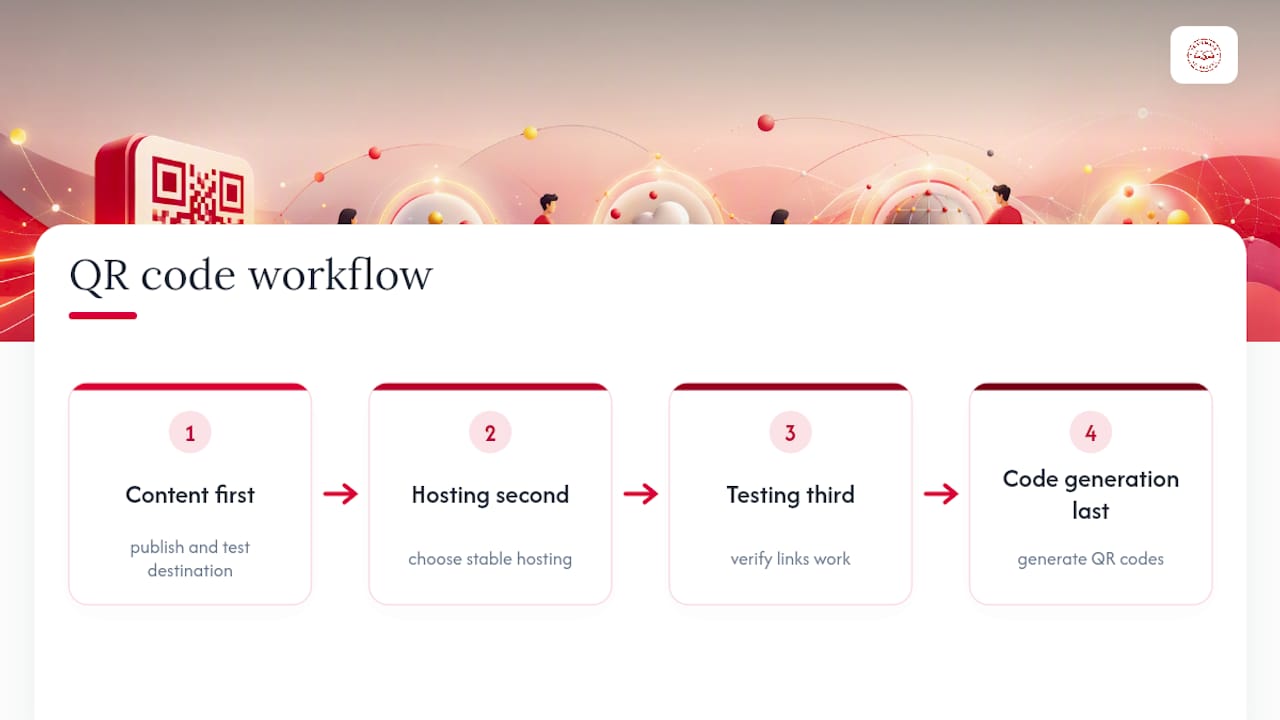
Most of the advice floating around treats QR codes as a technology decision. It isn't. It's a project management decision wearing a tech costume. The codes themselves are trivial to generate; any free tool does that in seconds. What separates a yearbook where every code works three years later from one where half of them are dead by spring is entirely about sequencing: content first, hosting second, testing third, code generation last.
The conventional advice oversells the size rule and undersells the archive spreadsheet. Advisers worry about whether their code is exactly one inch, when the bigger risk sitting in front of them is that nobody wrote down which login controls the video the code points to. A code that's slightly undersized but points to a stable, dynamic destination will outlast a perfectly sized code pointing at someone's personal Google Drive account that gets cleaned out during summer break.
If you take one thing from this: build the habit of publishing and testing the destination before you ever open a QR generator. Everything else, hosting choice, sizing, placement, is a refinement on top of that one non-negotiable step.
— Jace
Get Help Printing a QR-Ready Yearbook
TrailMark Yearbooks is built for exactly this kind of project: transparent, instant pricing with no sales calls and no hidden fees, so you know what a QR-enabled book costs before you commit to a single layout decision. Our team proofs printed pages for scannability, helps you choose between dynamic and static code strategies, and supports common design tools without requiring a platform switch mid-project.

If you want to see how a QR code actually looks and scans on finished paper stock before you commit to a full print run, request a sample and test it yourself. Or head to our production and pricing page to see exactly what a hard cover, soft cover, or specialty-bound book costs with your QR spreads included.
Sources
For deeper technical detail, see JEA's practitioner guidance, the Times Union's school case studies, and our guide on yearbook accessibility planning.
- QR codes create interactive yearbook experience - JEA
- Linking yearbooks to future - Times Union
- Dynamic QR Codes: Create, Track, and Update Them
FAQ
Is It Safe to Scan QR Codes in a Yearbook?
Yearbook QR codes from your own school are generally safe since you control the destination, but the FBI has warned that scammers sometimes overlay malicious QR codes on legitimate ones in public places. Stick to codes printed directly by your yearbook publisher and avoid scanning stickers or codes that look tampered with.
How Do You Scan a QR Code in a School Yearbook?
Open your phone's camera app and point it at the code; most modern phones detect QR codes automatically and show a link to tap, no separate app needed. If your phone doesn't recognize it automatically, a free QR scanner app works the same way.
Are QR Codes Outdated for Yearbooks?
No, QR codes aren't outdated. Phone cameras now read them instantly without a separate app, which has made them more practical for yearbooks than they were a decade ago, and schools continue using them to link pages to video and gallery content.
Is It Legal to Put a QR Code on a Yearbook Page?
Yes, printing a QR code is legal; the legal considerations come from what it links to, not the code itself. You still need standard media releases and permissions for any photo, video, or audio content the code connects to, the same as any other yearbook content.
What Happens if a Yearbook QR Code Stops Working?
The code itself never stops scanning; the linked destination can go offline if hosting lapses or content gets removed. Using dynamic codes or a school-owned redirect page lets you update the destination later instead of leaving a permanent dead link in a printed book.