
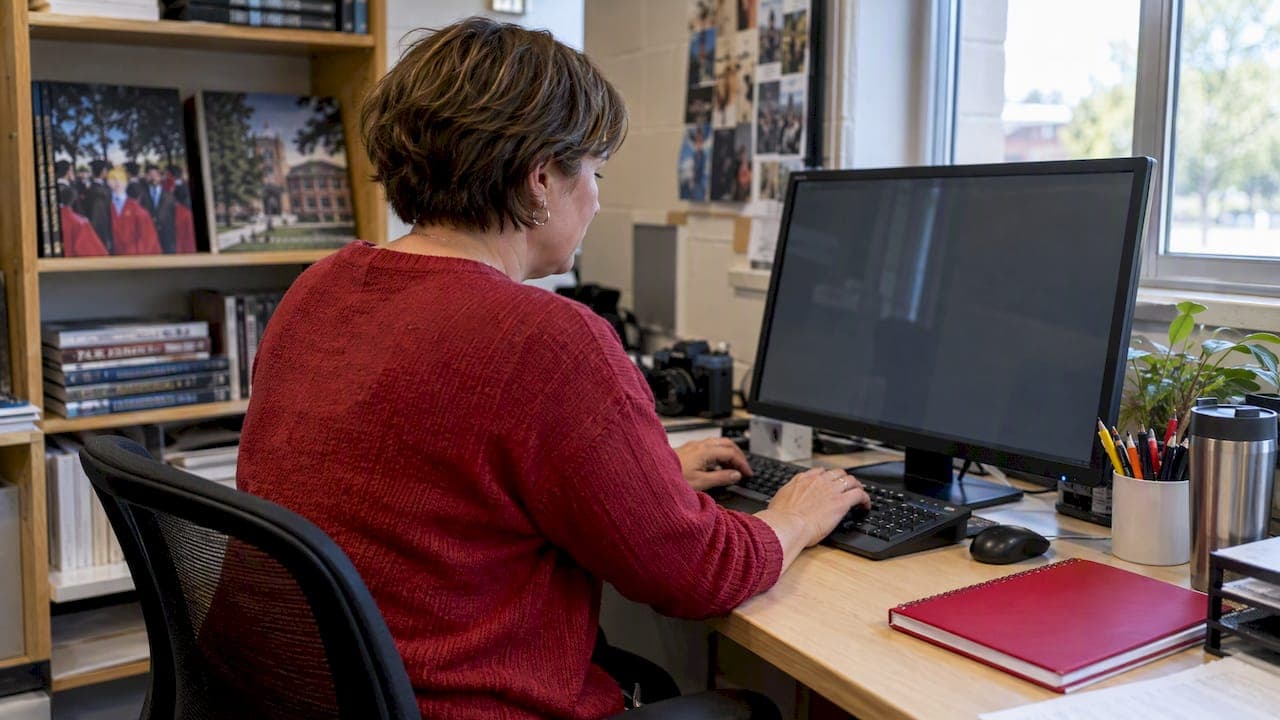
A password-protected yearbook portal is a vendor-hosted hub where school staff, not students or parents, log in to design pages, review proofs, check pricing, and place the final print order. The real payoff is control: one login tracks who approved what, keeps pricing visible in one place, and stops a proof from going to print before the right person signs off.
TL;DR:
- A vendor-hosted yearbook portal should support multiple user roles, proofing tools, and file compatibility with Canva and InDesign to streamline revisions.
- Ensure the portal encrypts data, maintains detailed audit logs, and limits admin access to secure student privacy and streamline permissions.
- Proof approval should require sign-off from designated staff at each step, with a typical turnaround of a few weeks from final approval to shipment.
- Set up the portal by creating a master account, adding staff with role-specific permissions, and testing the full approval process before uploading actual content.
- Limit admin accounts, enable two-factor authentication, and promptly disable old share links to prevent delays and security breaches during yearbook production.
Table of Contents
- 1. Typical portal features: roles, proofing, and order dashboards
- 2. Security and student data privacy: what to ask your vendor
- 3. How proofs, approvals, and orders move through the portal
- 4. Setup and onboarding checklist for this term
- 5. Best practices for access management that avoid delays
- 6. Vendor support, troubleshooting, and escalation
- 7. Why centralized portal control actually reduces adviser stress
- TrailMark Yearbooks: a portal built around this checklist
- FAQ
1. Typical portal features: roles, proofing, and order dashboards
Before signing with any vendor, check the portal for a specific set of working parts. rather than a sales page full of promises. A portal that only lets one person log in isn't built for a real yearbook staff of advisers, co-advisers, and student editors.
- User roles: separate logins for the lead adviser, co-advisers, and student staff, each with different edit or view-only permissions.
- Proofing tools: a way to mark up pages, leave comments, and track which version is current without emailing PDFs back and forth.
- Design compatibility: support for Canva, Adobe InDesign, or the vendor's online creator so exported files keep their fonts, colors, and layout intact.
- Pricing and order dashboard: a single screen showing book count, add-ons, and total cost before you commit to the order.
File compatibility matters more than it looks. If a portal only accepts files from its own design tool, every revision has to happen inside that tool, which slows down a staff that already uses Canva or InDesign for other school projects. A portal built to accept exports from multiple programs cuts the number of revision cycles and avoids formatting surprises at proof stage.
2. Security and student data privacy: what to ask your vendor
Student photos and names carry privacy weight that a generic file-sharing tool was never built to handle. Before granting access to any staff member, confirm the vendor can answer these points directly.
- Encryption: ask whether files are encrypted both in transit and at rest, not just during upload.
- Audit logs: confirm the portal records who viewed, edited, or approved each page and when.
- Retention policy: find out how long student images and data stay on the vendor's servers after the book ships.
- Role separation: make sure admin-level access is limited to one or two staff, not shared across the whole committee.
- Login security: check for single sign-on options tied to your school's existing accounts, plus two-factor authentication for admin roles.
For consent handling specifically, detailed guidance on photo consent and data retention walks through where to store signed consent forms and how to map them against the students who appear in uploaded photos. A vendor that treats this as an afterthought will leave you scrambling at proof time. For a technical look at how encryption and audit logging work on a private education platform, Semester Flow's security documentation breaks down what those controls should actually look like in practice.
Pro Tip: Keep a single spreadsheet mapping each student's consent status to their photo file name before uploads start, not after.

3. How proofs, approvals, and orders move through the portal
A working portal turns proofing into a sequence of gated steps instead of a pile of email attachments. Each step should require a specific person's sign-off before the next one can start.
- The designer uploads a page or spread and the portal timestamps it as the current version.
- The lead adviser reviews it inside the portal and either approves it or sends it back with comments.
- Only an approved page moves into the final book file, which prevents an unapproved draft from slipping into print.
- Once every page is approved, the portal locks the file and the order moves to production.
Turnaround expectations vary by vendor, but a typical turnaround window from final approval to shipped books is generally a few weeks. On-demand or reprint requests should follow a lighter version of the same approval gate: a single page gets swapped, re-approved, and reprinted without reopening the whole book. For step-by-step upload mechanics, including file naming conventions that keep version control clean, a guide to secure asset uploads covers the practical details advisers run into most often.
4. Setup and onboarding checklist for this term
Getting the portal running smoothly takes less than an hour of setup if you follow a fixed sequence rather than improvising account by account.
- Create the master account under the lead adviser's school email, not a personal address.
- Add staff accounts for co-advisers and student editors with permissions matched to their actual role.
- Set a password policy, requiring unique passwords and two-factor authentication for any admin-level login.
- Run a test proof: upload one sample spread and walk it through the full approval cycle before real content goes in.
- Map consent records to student names and photo files before any uploads begin.
- Document the sign-off owner: write down, in plain text, who has final approval authority so a sub or new co-adviser can step in without confusion.
When you run that test proof, export it against your vendor's print specification, typically a PDF/X file, and check that fonts, image resolution, and bleed lines survive the export. A compliance checklist for yearbook programs lists the program-level items worth confirming at the same time, so you only go through setup once.
5. Best practices for access management that avoid delays
Most production delays trace back to access problems, not design problems: someone loses a password, a public link gets shared by accident, or an admin seat changes hands mid-year without anyone updating the login.
- Keep admin seats limited to two people at most, even on a large yearbook staff.
- Require two-factor authentication on every admin account, not just the lead adviser's.
- Rotate shared passwords at the start of each semester and whenever a staff member leaves the committee.
- Disable or delete shareable proof links once a page has been approved, so an old draft can't circulate after revision.
A common red flag is a proof link that still works months after the page it points to has changed. Treat any link without an expiration date as a liability and replace it with a login-gated version instead.
Pro Tip: Set a recurring calendar reminder each semester to review who still has portal access and remove anyone who's left the committee.
6. Vendor support, troubleshooting, and escalation
A portal is only as good as the support behind it when something goes wrong close to a deadline. Before you need it, find out what the actual support channels look like.
- Confirm whether support runs through phone, chat, or email, and what response time to expect for a routine question versus a proof-breaking error.
- Ask specifically how fast the vendor responds when a page fails to export correctly right before a deadline.
- Before contacting support, log exactly what changed: the page number, the export format, and the last successful version, so the vendor can diagnose it without a back-and-forth.
- Ask what the process looks like for requesting an expedited reprint if an error makes it into a shipped book.
A vendor with adviser playbooks covering specific production problems, like keeping class-page photos from shrinking into postage-stamp size during layout, tends to have support staff who've seen your exact problem before.
7. Why centralized portal control actually reduces adviser stress
The biggest shift a password-protected portal makes isn't technical, it's psychological. Instead of tracking proof versions across a dozen email threads, every approval lives in one place with a timestamp attached to it.

That alone removes most of the back-and-forth that eats an adviser's week in the weeks before a deadline. Fewer threads mean fewer chances for an outdated draft to get approved by mistake, and a clear role structure means a new co-adviser can see exactly what's been signed off without asking around.
One habit worth keeping: save your onboarding notes, role assignments, and consent-mapping spreadsheet somewhere outside the portal itself. Next year's setup takes a fraction of the time when you're not starting from scratch.
— Jace
TrailMark Yearbooks: a portal built around this checklist
We built our password-protected resource hub around exactly the gaps advisers run into most: a school-only login, no public storefront mixed in, and pricing you can see before you commit. Every school gets instant all-inclusive pricing online, and turnaround from final approval typically runs a few weeks with shipping included.
- Free design assistance comes with every order, supporting staff working in Canva, Adobe InDesign, or an online creator.
- Proofs and approvals move through the same portal where pricing can be checked and orders finalized, so nothing gets tracked across separate tools.
- A dedicated adviser backed by our production and printing options walks you through bindings and finishes before you approve a final file.
| What you need | What we provide |
|---|---|
| School-only access | Password-protected adviser portal, no public student/parent login |
| Pricing visibility | Instant all-inclusive pricing, no signup required |
| Turnaround | production window after final approval typically occurs within a few weeks |
| Design support | Free design assistance across Canva, InDesign, and our online creator |
If you want to check print quality before committing your whole staff to the portal, request a physical sample and see the binding and finish in hand before you approve a single page.
FAQ
What is a password-protected yearbook portal used for?
It's a vendor-hosted login where school staff, specifically advisers and co-advisers, design pages, review proofs, and place the final order. It isn't a storefront for students or parents to buy individual copies.
Who should have access to the portal, and who shouldn't?
Access should go to the lead adviser, co-advisers, and student staff working directly on design, each with permissions matched to their role. Parents and students buying individual yearbooks use a separate, unrelated purchase process outside this portal.
How long does production take after proofs are approved?
A reasonable turnaround benchmark to ask a vendor for is usually a few weeks from final approval to shipped books. Reprint or on-demand requests for a single corrected page typically move faster since they skip the full-book approval cycle.
What should we check before uploading student photos to a portal?
Confirm the vendor's encryption, audit logging, and data retention policy, and map signed photo consent to each student before any uploads begin. Specific guidance on consent and retention steps covers what to document and when.
Does a yearbook portal work with tools like Canva or InDesign?
A well-built portal accepts exports from common design tools, including Canva and Adobe InDesign, alongside its own built-in creator. That compatibility matters because it keeps fonts, image resolution, and layout intact across revisions instead of forcing every edit into one proprietary tool.