
Watch a foundational tutorial video, then run a hands-on ladder workshop the same week. That two-step sequence gets an adviser and student staff operational faster than any other approach. Start with the 90-minute training video plus a curriculum guide, then have new staff build a page ladder before touching a single spread.
TL;DR:
- Building and locking a yearbook ladder early ensures deadlines, proof cycles, and coverage plans flow smoothly throughout the year.
- Starting with a foundational 90-minute tutorial video and a hands-on ladder workshop accelerates staff onboarding and reduces missed coverage.
- Teaching core skills like designing two-page spreads, managing portraits, and preflighting images prevents common errors and streamlines production.
- Clear collaboration rules, role assignment, and version control prevent work conflicts and last-minute panic before proofs are due.
- Use shared photo folders and consistent file requirements to minimize delays caused by mixed image quality and disorganized photo management.
Table of Contents
- What Is the Best Way to Structure Yearbook Software Training?
- What Core Skills Should Every Yearbook Staffer Learn First?
- How Do You Build a Yearbook Production Schedule That Actually Holds?
- How Long Should a Yearbook Training Session Run?
- Where Do You Find Reliable Yearbook Software Resources?
- How Does TrailMark Yearbooks Support Adviser Training?
- What Are the Most Common Yearbook Software Errors and Fixes?
- How Should Yearbook Teams Manage Collaboration and Version Control?
- How Do Photo Management Tools Fit into Yearbook Software Training?
- Does Yearbook Software Support Advanced Customization or Scripting?
- How Do You Train Both Beginner and Advanced Yearbook Staff Together?
- What I Learned Watching a Struggling Program Turn Around
- Get Hands-On Support for Your Next Yearbook
- Sources
What Is the Best Way to Structure Yearbook Software Training?
There's no single right format for yearbook software training. The right mix depends on who you're training, how much lab time you have, and whether students earn class credit for the work.
Video tutorials work best for onboarding and for refreshers when a staffer forgets how a tool works six months later. The foundational adviser and user training video commonly runs about 1.5 hours and walks through primary functionality and workflow from start to finish. That length matters. It's long enough to cover real ground, short enough to fit inside a single class period or after-school session.
Live workshops earn their place when students need to troubleshoot in real time. Watching someone auto-flow portraits on a screen is one thing; doing it yourself while an adviser watches your cursor is another. Curriculum modules and classroom-ready lesson plans matter most for programs that run yearbook as a semester or year-long course, since they space skills out over multiple weeks instead of cramming everything into one session. Vendor training hubs frequently organize learning by topic with videos, modules, and live events bundled together.
Self-study resources fit best for advanced students or returning staff who already know the basics and just need a specific answer.
- Video tutorials: onboarding, refreshers, asynchronous learning
- Live workshops: troubleshooting, hands-on practice, team building
- Curriculum modules: full-semester programs, graded coursework
- Self-study guides: quick answers for experienced staff
Pro Tip: Assign the foundational video as homework before the first workshop. You'll spend workshop time on hands-on practice instead of narrating slides.
What Core Skills Should Every Yearbook Staffer Learn First?
Skip the fluff and teach these five skills in order. Everything else in the software builds on them.
- Build and use the yearbook ladder. The ladder is the single most important production tool in the entire process, and building it before design begins is what prevents missed deadlines and incomplete coverage later. Skip this step and you'll discover in March that nobody assigned the winter formal spread.
- Design in two-page spreads, not single pages. Students who design one page at a time almost always misalign elements across the gutter. Practicing on two-page spreads from day one teaches alignment and replicates how a reader actually experiences the book.
- Manage portraits: roster import, auto-flow, and name verification. This is where most yearbook errors originate. A misspelled name under a photo is the single most common parent complaint an adviser will field.
- Preflight images before export. Teach resolution requirements, cropping ratios, and print-ready export settings before a single spread goes to proof, not after.
- Run the auto-index tool, then check it by hand. Software indexing catches most names. It does not catch every nickname, hyphenated last name, or student who appears in a candid without being tagged.
Yearbook production works best when advisers frame it as strategic storytelling rather than a checklist. That framing helps students prioritize which spreads need the most attention and which coverage gaps matter most, rather than treating every page as equally urgent.
How Do You Build a Yearbook Production Schedule That Actually Holds?
Build the ladder first. Every deadline, every proofing cycle, and every coverage assignment flows from that single document, and skipping it is the most common reason production schedules collapse in February.
A workable timeline ties milestones to events that already happen on your school calendar:
- August/September: Ladder locked, sections assigned, portrait day scheduled
- October: First proofs due on fall sports and club fair coverage
- December: Winter sports and events spreads drafted
- February: Second proofing cycle, index verification begins
- March: Final proofs, spring sports placeholder pages closed
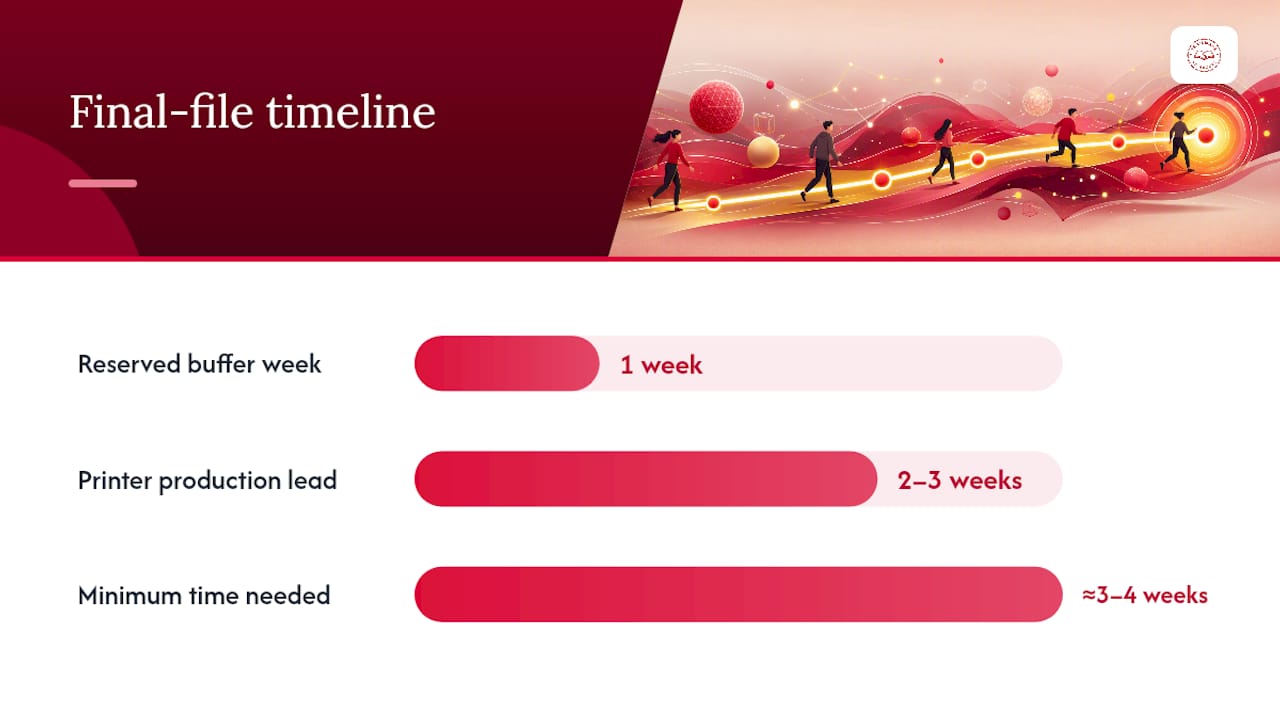
- April: Files uploaded, buffer week held in reserve
Assign roles clearly so nobody assumes someone else owns a task. A basic responsibility grid works: the adviser owns deadlines and quality control, the editor-in-chief owns the ladder and cross-section consistency, section editors own their spreads, photographers own image capture and delivery, and a copy editor owns caption accuracy and index checks.
Build in at least one full buffer week before your printer's deadline. Given typical 2 to 3 week production lead times once files are submitted, a late upload doesn't just delay your book. It can push delivery past graduation. A detailed deadline management checklist and a coverage plan template both make this schedule easier to maintain across a full school year.
How Long Should a Yearbook Training Session Run?
Match the session length to what you actually need students to walk away doing. Three formats cover almost every situation an adviser faces.
- 45 minutes: interface basics. Cover navigation, tools, and menus, then have each student build one sample spread from a template. Nothing fancy, just enough to prove they know where things live.
- 90 minutes: hands-on workshop. This is the format worth defaulting to for new staff. Pair a 45 to 60 minute guided tutorial with 30 to 45 minutes of hands-on ladder and portrait-flow practice. Research on adviser training backs this combination: pairing short tutorials with immediate practice builds real competence faster than lecture-only sessions.
- Multi-day curriculum: For semester-long programs, sequence modules week by week: ladder and coverage planning, then spread design, then portrait and photo management, then proofing and index verification. Grade each module with a simple rubric tied to accuracy and deadline adherence.
For volunteer-run programs without dedicated class time, compress the 90-minute workshop into two 45-minute after-school sessions a week apart.
Pro Tip: Never run a training session longer than 90 minutes without a hands-on break. Attention drops hard after an hour of watching a screen.
Where Do You Find Reliable Yearbook Software Resources?
Most advisers don't know their software's full support library exists until they're stuck at 9 PM before a deadline. Know where to look before that happens.
- In-software video help and knowledge base playlists cover specific tool questions faster than a general web search. Updated tutorial libraries, including a refreshed 2025 to 2026 tutorial playlist, are typically available both inside the software and on video platforms.
- Templates and master pages save enormous time when organized correctly. Group them by section (sports, academics, clubs) so students aren't hunting through a generic template list every time.
- Run a preflight check before every file export: verify resolution, bleed, and color settings against your printer's specs. A complete preflight checklist built for book production covers the same fundamentals that apply to yearbook files.
- Contact technical support for software crashes, file corruption, or tool malfunctions. Contact your printer for questions about paper stock, binding, or shipping timelines. Advisers who confuse the two waste days waiting on the wrong team.
How Does TrailMark Yearbooks Support Adviser Training?
Trailmarkyearbooks builds its support model around the reality that most advisers are teachers first, designers second. Free design assistance means a stuck adviser gets a real person, not a ticket queue. Turnaround runs 2 to 3 weeks once files are submitted, and design flexibility spans a proprietary online creator, Canva, and Adobe InDesign.
- Free design assistance from a dedicated adviser support team
- Flexible design options across multiple software platforms
- Fast 2 to 3 week production turnaround with no order deadlines
- Downloadable adviser resource guides that pair with in-school training
Combine these resources with your own training sessions rather than choosing one or the other. Use the vendor's tutorials for tool mechanics and Trailmarkyearbooks's adviser guides for pacing and deadline planning.
What Are the Most Common Yearbook Software Errors and Fixes?
Most yearbook software problems fall into a handful of repeat offenders. Learn to recognize the pattern and the fix usually takes minutes instead of hours.
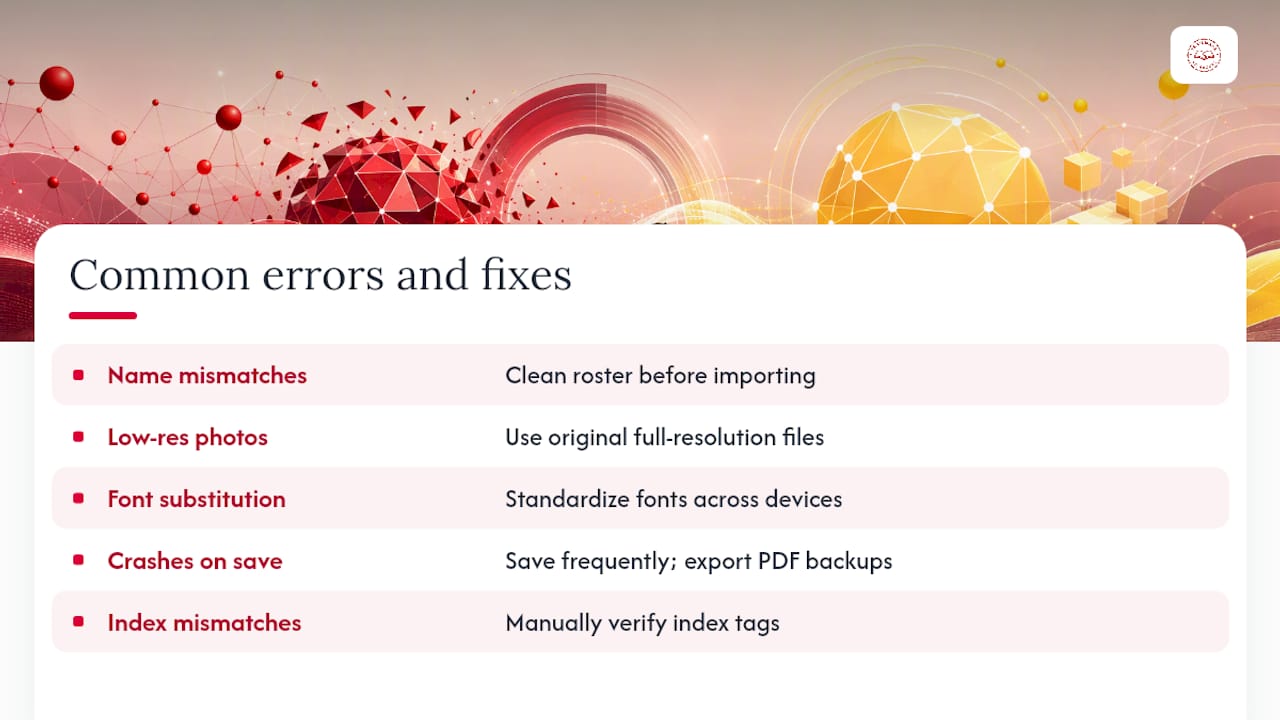
Missing or duplicate names in the auto-flow tool almost always trace back to a roster spreadsheet issue, not the software itself. A student listed twice under slightly different name spellings ("Kate Smith" versus "Katie Smith") will confuse the auto-flow matching. Clean the roster before importing, not after.
Low-resolution warnings on portrait images usually mean a photo was pulled from a compressed source, like a text message or a social media download, instead of the original photographer's file. Train students to always request full-resolution files directly from the photography vendor.
Font substitution errors happen when a template built on one computer opens on another without the same fonts installed. Standardize on web-safe or licensed fonts across every device your staff uses, and check this before, not during, your final proofing cycle.
File corruption or crashes on save are rarer but real. Save early, save often, and keep a habit of exporting a backup PDF proof after every major editing session so a crash never erases hours of work.
Index mismatches occur when a student appears in a photo but isn't tagged, or is tagged under a nickname the auto-index tool doesn't recognize. This is exactly why manual index verification stays on the checklist even after running the automated tool.
When in doubt, check the knowledge base first. Most error messages have a documented fix, and searching the exact error text usually surfaces it faster than guessing.
How Should Yearbook Teams Manage Collaboration and Version Control?
Multiple students editing the same spread at once is the fastest way to lose work or create conflicting versions. Set ground rules before your first workshop, not after the first disaster.
Assign one owner per spread. Section editors should be the only person actively editing a given page at any time, even if multiple students contribute content, photos, or captions to it. This single rule prevents most version conflicts before they start.
Establish a naming convention for exported proofs, something like Section_PageNumber_Date_Initials, so nobody confuses last week's draft with today's. When multiple people need to review the same spread, export a PDF proof for markup rather than letting two people edit the live file simultaneously.
Set a weekly check-in where the editor-in-chief reviews the ladder against actual progress. Spreads marked "complete" that are actually half-finished are the number one cause of last-minute panic before a proof deadline.
Back up work regularly, ideally to a shared cloud folder rather than a single laptop. A stolen backpack or a dead hard drive shouldn't cost a section three months of work. If your software supports it, use built-in version history to recover an earlier draft rather than rebuilding a spread from memory.
Finally, keep one master coverage document, not five competing spreadsheets. When everyone edits the same live tracker, gaps in coverage show up immediately instead of surfacing in April.
How Do Photo Management Tools Fit into Yearbook Software Training?
Yearbook software handles layout, but it rarely handles photo organization well on its own. That gap is where a lot of production time disappears if nobody plans for it.
Set up a shared photo folder structure before portrait day, organized by event or section, not by photographer. When five students submit photos from the same football game, a shared, dated folder prevents duplicate imports and missing files.
Portrait vendors typically deliver roster-matched image files that import directly into the auto-flow tool, which is far faster than manually placing individual student photos. Train students on this import process specifically, since it differs from how they'd drag a candid photo into a spread.
For photo editing beyond basic cropping, most yearbook programs use external tools for color correction or retouching before bringing images back into the yearbook software itself. Some services, including Mixbook's education-focused studio, build template customization and auto-layout tools directly into their platform for exactly this reason, reducing how much external editing a student needs to do.
Whatever tools you use, standardize the file format and resolution requirements across every photographer and student contributor. A mixed batch of phone photos, DSLR files, and screenshots creates a preflight nightmare right before your proofing deadline.
Does Yearbook Software Support Advanced Customization or Scripting?
Most yearbook platforms are not built for scripting the way general design software can be. Advisers looking for macro-level automation, like batch-renaming files or auto-generating captions from a spreadsheet, will find that this capability varies significantly by platform and is often limited or unavailable.
Where advanced customization does exist, it usually takes the form of custom master pages, saved style sets, and reusable template libraries rather than true plugins or scripts. A staff that builds a strong library of custom master pages early in the year effectively creates its own shortcut system, even without formal scripting tools.
For teams that want deeper automation, some general design platforms like Adobe InDesign support scripting and data-merge features that can auto-populate roster information into a template. This is a more advanced workflow, best reserved for students who've already mastered the fundamentals, and it requires someone on staff comfortable with more technical setup.
The realistic takeaway for most programs: master the built-in template and master-page system fully before chasing custom scripting solutions. Very few yearbook teams actually need automation beyond what a well-organized template library already provides.
How Do You Train Both Beginner and Advanced Yearbook Staff Together?
Mixed-experience staff rooms are the norm, not the exception, for most yearbook programs. Structure sessions so nobody's bored and nobody's lost.
Pair a returning staffer with a new one during hands-on practice. The returning student reinforces their own knowledge by explaining it, and the new student gets a peer resource instead of relying solely on the adviser.
Run tiered assignments during the same workshop. While beginners work through the foundational template and portrait-flow exercise, advanced students can tackle a more complex spread, like a two-page spread involving layered photos, or start on index verification for a section that's already drafted.
Give advanced students ownership roles early. A returning junior or senior editor who owns a section outright learns faster and frees up adviser time for the students who genuinely need one-on-one guidance.
Don't skip the fundamentals for advanced students just because they've used the software before. A quick refresher on ladder logic or export settings at the start of the year catches bad habits before they become embedded across an entire section.
What I Learned Watching a Struggling Program Turn Around
One adviser I worked with inherited a program with no ladder, no consistent portrait workflow, and a staff that treated every deadline as a suggestion. After one term of structured training, built around a foundational tutorial video, a single 90-minute ladder workshop, and a locked coverage plan, missed portrait placements dropped to nearly zero and the spring proofing cycle finished a full week ahead of schedule.
The lesson wasn't fancier software. It was sequencing. Teach the ladder before you teach anything else, and the rest of the program stops feeling like triage.
— Jace
Get Hands-On Support for Your Next Yearbook
Training your staff is half the equation. The other half is a production partner who doesn't add friction once your files are ready to go. Trailmarkyearbooks gives advisers free design assistance from a real person, not a support ticket, plus a 2 to 3 week turnaround once your book is finalized. No order deadlines, no sales calls, and no hidden fees buried in a quote you have to request.

Whether your staff builds spreads in the online creator, Canva, or Adobe InDesign, Trailmarkyearbooks meets your workflow instead of forcing you into one platform. That flexibility matters most for programs training a mix of beginner and advanced students on different comfort levels with design software.
Ready to see the print quality before you commit? Request a free sample or browse adviser resources and onboarding guides to pair with your training sessions this term.
Sources
- Yearbook Pro Adviser and User Training Video – Knowledge Base Home
- Yearbook Design: Layouts and Themes
- How to Design a Yearbook: Complete Guide for Students & Advisors | Touch Archive