
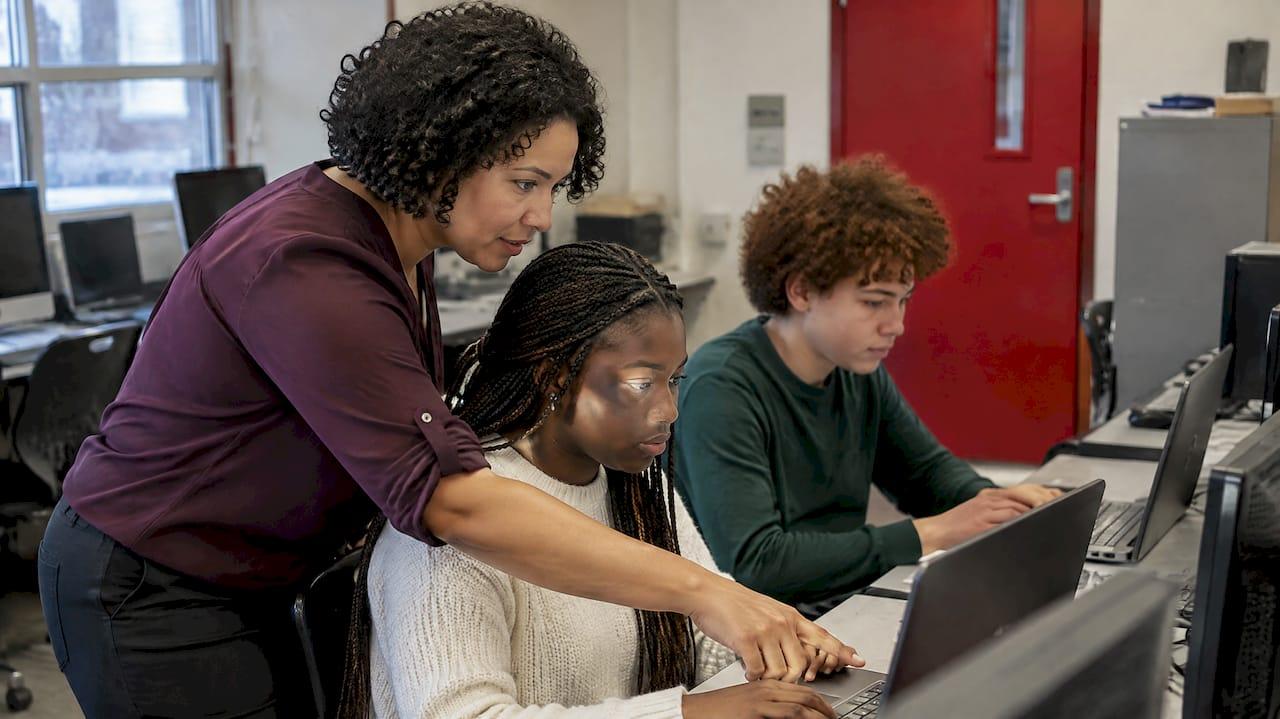
A yearbook team can build pages together in Canva with one shared folder, three permission levels (view, comment, edit) and a clear page plan. The adviser stays in control of who edits what. The pages then go to print as a PDF that meets your printer's size and bleed requirements. Because we accept Canva files at TrailMark Yearbooks, your team can design where students already work and still end up with a book that prints cleanly.
This guide is for advisers and administrators. It covers the setup, the roles, the review routine, the student privacy point to settle first, and the export checks that keep a finished design from bouncing back.
TL;DR
- Build one shared folder, give student editors "Can edit" on their own spreads, and give everyone else "Can comment" or "Can view".
- Canva designs start private. Avoid "Anyone with the link" for anything containing student photos or names.
- Settle parental consent before inviting students into any Canva classroom.
- Export as PDF Print with bleed and crop marks, at 300 DPI images. Check the specs with your printer before you export.
- TrailMark accepts Canva, InDesign or our online creator, with 2–3 week turnaround and no order deadlines.
Table of Contents
- Why Canva works for a collaborative yearbook
- Set up the shared project
- Roles and permissions: who gets what
- Settle student access and consent first
- A review routine that prevents overwriting
- Keep photos and files organized
- Getting Canva pages print-ready
- Problems teams run into, and the fix
- What we offer yearbook teams working in Canva
- Our view: collaboration is an adviser's workflow, not a software feature
- FAQ
- Sources
Why Canva works for a collaborative yearbook
Most yearbook staffs are a rotating cast: a few returning students, new ones every fall, and an adviser who is also teaching a full load. Canva suits that situation because students already know it, it runs in a browser, and several people can be in the same design at once. NC State Extension notes that during real-time collaboration teammates appear with profile photos and colored cursors, so you can see who is working where.
The weakness of collaboration without structure is predictable: two students edit the same spread, someone deletes a photo box, nobody knows which version is final. The fix is not a better tool. It is a plan for who owns which pages, and permissions that enforce it.
Set up the shared project
Start with the page plan, not the software. List every page and who or what goes on it before anyone opens Canva. Our own Canva yearbook workflow guide walks from page plan to print-ready PDF if you want the full sequence.
Then build the structure in this order:
- Create one folder for the book. Inside it, make one design per spread or per section (clubs, sports, class pages, ads). Small designs are easier to assign than one 128-page file.
- Name every design the same way. Something like "Spread 14 – Fall Sports – Owner: Maria" lets anyone find a page in seconds.
- Set up the template first. Build the cover, a master spread with margins and a style guide (fonts, colors, caption style), and duplicate it for each page. Our yearbook template customization guide covers how to adapt a template without breaking its layout.
- Share from the folder or the design. Open it in Projects, choose Share, and invite people by email or link, or share with a group or team. NC State Extension's guide describes the same path.
- Assign each design one owner. Per NC State, only the design owner or editors can change permissions, so the adviser should own the folder and the master files.
Roles and permissions: who gets what
Canva projects begin as private. Irvine Unified School District's tutorial states that the default is "Restricted", meaning only you can access it. From there you grant access person by person as viewer, commenter or editor, or through a link.
Here is a practical mapping for a yearbook staff:
| Role on the team | Canva permission | What it allows |
|---|---|---|
| Adviser | Owner of folder and masters | Controls all access and final files |
| Editors in chief, section editors | Can edit | Change layouts on assigned spreads |
| Staff photographers and writers | Can comment, or edit on one page | Add notes, or fill in their own content |
| Proofreaders, teachers, administrators | Can comment | Leave feedback without changing the page |
| Principal, parent volunteers, club sponsors | Can view | See the spread, nothing else |
Two cautions from the school-district guidance are worth taking seriously. First, the IUSD tutorial lets you set links to "Anyone at their site" or "Anyone with the link" and warns against using "Anyone with the link" for sensitive material. A yearbook in progress holds student names and photos, so invite by email instead. Second, NC State notes that anyone with view permission can make a copy of a design while the original stays unchanged. That is handy for a student who wants to experiment, and a reason to keep view access to people you trust.
To audit access at any point, IUSD points to Share, then Edit, then People with Access, where you can review, change or remove anyone. Do this at the start of each semester and whenever a student leaves the staff.
Settle student access and consent first
Before you add students, decide how they will join. Canva for Education gives verified teachers a classroom space, and per one district's tech guidance, a verified teacher can invite students through the People or Classroom section. Check with your school's technology office on which accounts students should use; many districts manage this centrally.
Privacy comes first. The order form between one school district and Canva states that the school must obtain any needed parent or guardian consent before inviting a student to the classroom, in line with applicable laws including COPPA, the federal children's online privacy law. Your district's counsel or technology director can tell you what your forms must say. Put the answer in your staff application packet so it is handled before the first invitation goes out.
A review routine that prevents overwriting
The cleanest way to avoid overwrites is to separate making from reviewing.
Make: One editor per spread at a time. Use a shared tracker (a simple spreadsheet works) with columns for page, owner, status and due date.
Review: Give reviewers "Can comment". IUSD describes this as similar to highlighting a Google doc: feedback is possible, edits are not. Reviewers can leave notes pinned to a specific element, and the owner resolves them.
Sign off: Move a spread to "final" in your tracker only after the adviser has checked it. Then change the student editor's access from edit to comment so the page cannot drift. NC State confirms that access can be revoked whenever you want a design private again.
A proofreading pass has a few fixed targets:
- Names: spelling, correct grade, correct caption match.
- Photos: faces cropped, no postage-stamp-sized images on class pages (see our class pages playbook).
- Consistency: fonts, caption style and margins match the style guide.
- Permission: every photo is cleared for use in the book.
Keep photos and files organized
Collaboration fails more often on files than on permissions. Photos arrive by text, email, and cloud drive, and then somebody asks which version was used. Set up photo intake before design starts, with one folder per event or section and a naming rule. Our guide to building a yearbook resource hub shows how advisers organize this.
A few habits that save hours in spring:
- Upload originals at full resolution, not compressed copies from a messaging app.
- Keep a "used" subfolder so photographers can see what has already run.
- Keep a running list of students who appear in zero photos, so coverage is fair across the school.
- Duplicate a design before major changes, so there is a version to return to.
Getting Canva pages print-ready
Canva is forgiving on screen and unforgiving at the press, so check specs before the first spread is finished, not the last. Colorado State University's print center gives a clear example: for an 8.5" x 11" finished page, the design with bleed should be 8.75" x 11.25", which adds 1/8" on every side. The same page says images should be 300 DPI, and that Canva files should be exported as PDF Print with the bleed area and crop marks included.
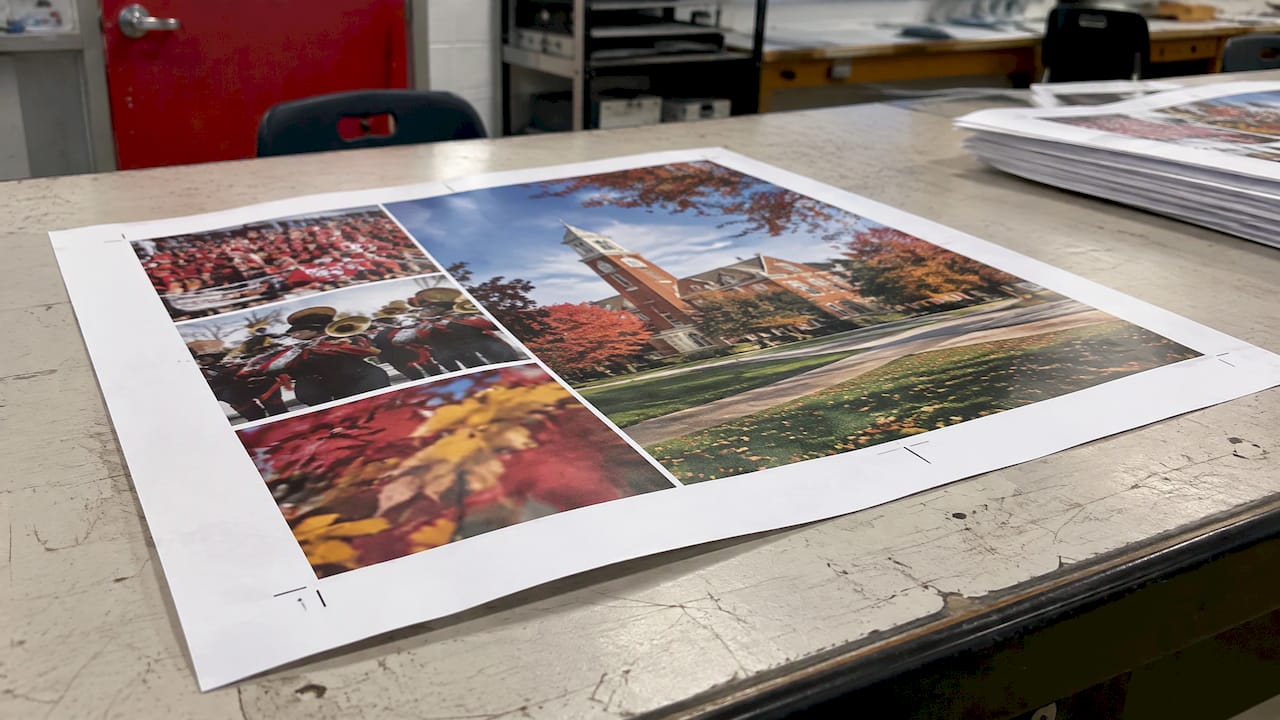
Bleed is the extra image area beyond the trim line. Without it, a tiny shift when the book is cut can leave a white sliver along the edge of a full-page photo.
Your pre-export checklist:
- Page size matches your book's trim size plus bleed.
- Photos are high resolution, with no stretching to fill a frame.
- Text and faces stay well inside the margins, away from the trim and the gutter (the inner fold).
- Page order and count match the plan, including a count your binding can handle.
- Export as PDF Print and open the file once to look through every page.
If part of your team prefers desktop software, or you want to move pages out of Canva, our guide to converting Canva to InDesign or sending the files to TrailMark covers both routes. For teams designing in Adobe, the Illustrator guide with 0.125 inch bleed and CMYK settings gives the equivalent setup.
Problems teams run into, and the fix
| Problem | Likely cause | Prevention |
|---|---|---|
| Two students overwrite each other | Shared editing on one design | One owner per spread, comment-only for reviewers |
| A student sees a page they should not | Link set to "Anyone with the link" | Invite by email, audit People with Access |
| Photos look soft in print | Low-resolution uploads or stretched frames | Upload originals, aim for 300 DPI |
| Edges look white after trim | No bleed in the design | Build at trim size plus 1/8" on each side |
| Final file has missing or reordered pages | Many small designs combined late | Export and review one full PDF well before submission |
| A departing student still has access | No access audit | Review People with Access each term |
What we offer yearbook teams working in Canva
TrailMark Yearbooks produces yearbooks for elementary, middle and high schools. Your team can design in Canva, Adobe InDesign or Illustrator, or our online creator, so students keep the tool they know. You get instant all-inclusive pricing online with no signup and no sales pitch, shipping included, and a 2–3 week turnaround with no order deadlines. Free design assistance is part of the support, and advisers also get curriculum and design resources through a password-protected online resource hub. Details of how that help works are in our guide to free design assistance.
Price your book at trailmarkyearbooks.com, or see the per-book options for binding, covers and extras on our printing options page. Perfect bound soft cover is $1.60 per book, a 150 point board hard cover is $1.50 per book, and Smyth sewn is $2.00 per book.
If you want a book designed for you instead, middle schools and K-8 programs can look at Design Your Own Yearbook and Yearbook Direct.
Our view: collaboration is an adviser's workflow, not a software feature
We have more than 50 years of combined experience supporting school yearbook programs, and the pattern is consistent: the tool matters less than the routine around it.
A staff that has a page plan, one owner per spread and a sign-off step produces a better book in Canva than a staff with no plan in any software. That is why we accept Canva, InDesign, Illustrator and our own online creator. Your students should design where they are comfortable, and the adviser should not have to rebuild their work to get it printed.
We also think advisers deserve plain answers. Pricing is instant and all-inclusive, with shipping included, and there are no order deadlines to race against. A two-to-three week turnaround means a late spring spread does not become a missed book.
Start with the folder, the roles and the checklist above. When the pages are ready, we will take it from there.
Jace
FAQ
Can several students edit the same Canva yearbook page at once?
Yes. Canva shows collaborators with profile photos and colored cursors, so you can see who is working where. For a yearbook, it is still safer to give each student a spread of their own and use comment-only access for reviewers.
What permission should proofreaders have?
Give proofreaders "Can comment". They can leave feedback on a page without changing it, which keeps the layout intact while the owner makes corrections.
Is it safe to share a yearbook design with a link?
The safest approach is to invite people by email. School-district guidance warns against "Anyone with the link" for sensitive material, and a yearbook draft contains student names and photos.
Can we send Canva pages straight to print?
Yes, once they are exported correctly. Export as PDF Print, include bleed and crop marks, and use 300 DPI images. TrailMark accepts Canva designs, so you can send the files to us when your pages are final.
Sources
- Sharing and Collaborating With Canva, NC State Extension
- Canva: Sharing a Project, Irvine Unified School District
- Canva for Education Order Form, Roseville City School District
- How to get Canva for Education verified, The Tech Edvocate
- FAQs, FastPrint, Colorado State University